Extract text from images and PDFs on Windows
Turn screenshots, scanned documents and image-based PDFs into reusable text with local PP-OCRv6. Choose Small for higher accuracy or Tiny for speed, and save TXT, JSON or a searchable PDF. Introduced in FrameShift 1.21.0.
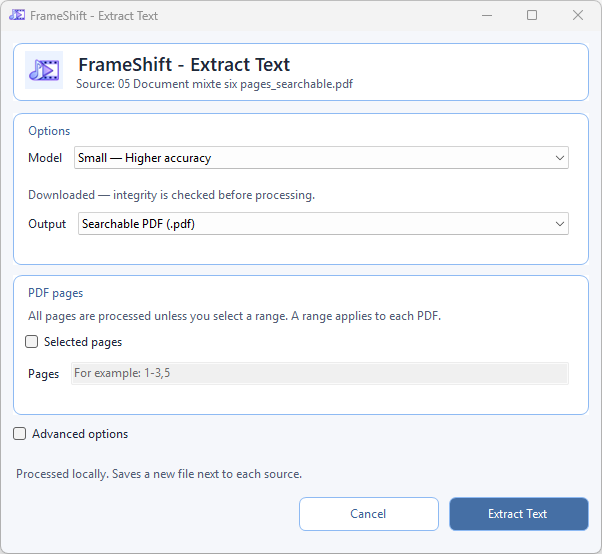
Choose your model and output
Enable Extract text (images and PDF) in the installer. Select a supported file in Explorer and right-click → Extract text, or use the FrameShift hub. Multiple files are processed as a queue, each with a new output beside its source.
UTF-8 text (.txt)
Reuse recognized text with line breaks or paragraph grouping, detected column order and optional PDF page markers.
Structured JSON (.json)
Keep text, line geometry, confidence and whether text came from the PDF or OCR for later processing.
Searchable PDF (.pdf)
Select and search recognized text while preserving the source PDF appearance and every page. Image input also supports searchable PDF output.
PDF pages and advanced options
- Process all pages or choose a range such as 1-3,5. The range applies to each selected PDF.
- Reuse existing native PDF text, recognize scanned content and handle mixed pages without duplicating the same text.
- Choose 200 DPI or higher-quality 300 DPI. Individual oversized pages automatically use a safe resolution, with a reported quality adjustment.
- Select recognition rotation (0°, 90°, 180° or 270°) and CPU or DirectML processing.
- Choose TXT line breaks or paragraph grouping. Searchable PDF keeps the visual page layout; no editable document reconstruction is performed.
Original files are preserved. Outputs use unique names, and cancellation cleans unfinished work.
Small or Tiny: downloaded once, used locally
Small is the default for higher accuracy, with a complete package of about 31.7 MB. Tiny favors speed at about 6.7 MB. Both include dictionaries and Apache-2.0 notices. They download on demand from the FrameShift model repository with size and SHA-256 checks, then run offline. Model weights are not bundled in the installer.
PNG, JPG/JPEG, WebP, BMP and PDF are supported. Review recognition results for very small text, handwriting and skewed or complex layouts.
Read the complete feature guide · Create a PDF from images · All local AI tools
Frequently asked questions
Which files can I use?
PNG, JPG/JPEG, WebP, BMP and PDF. Scanned and mixed native/scanned PDFs are supported. TIFF is not supported.
Which model should I choose?
Small is the default for higher accuracy; Tiny favors speed. Complete downloads are approximately 31.7 MB and 6.7 MB respectively, including dictionaries and Apache-2.0 notices.
What does a searchable PDF preserve?
PDF input keeps its original appearance, page sizes and every source page. An invisible selectable text layer is added to the selected OCR pages. Images can also be saved as searchable PDFs.
Can I choose PDF pages and text layout?
Yes. Select a range such as 1-3,5. TXT can keep line breaks or group paragraphs and include page markers. Detected columns are read in sequence. Searchable PDF preserves the visual layout; JSON includes page geometry and text information.
Does OCR work offline?
After the first model download, recognition runs entirely on your machine with CPU or DirectML. Native-only PDF text can be reused without downloading a model. No files are uploaded.
Are there recognition limits?
Review small, handwritten, skewed or complex text. Oversized pages automatically use a safe rendering resolution and report the adjustment. This OCR workflow does not reconstruct editable tables or guarantee every complex layout.