
Media tools · Windows
Video, audio, image.
Locally.
Convert, cut and enhance your files, from Explorer or the main window.
In version 1.24.0
Balance volume
Quiet dialogue and loud scenes.
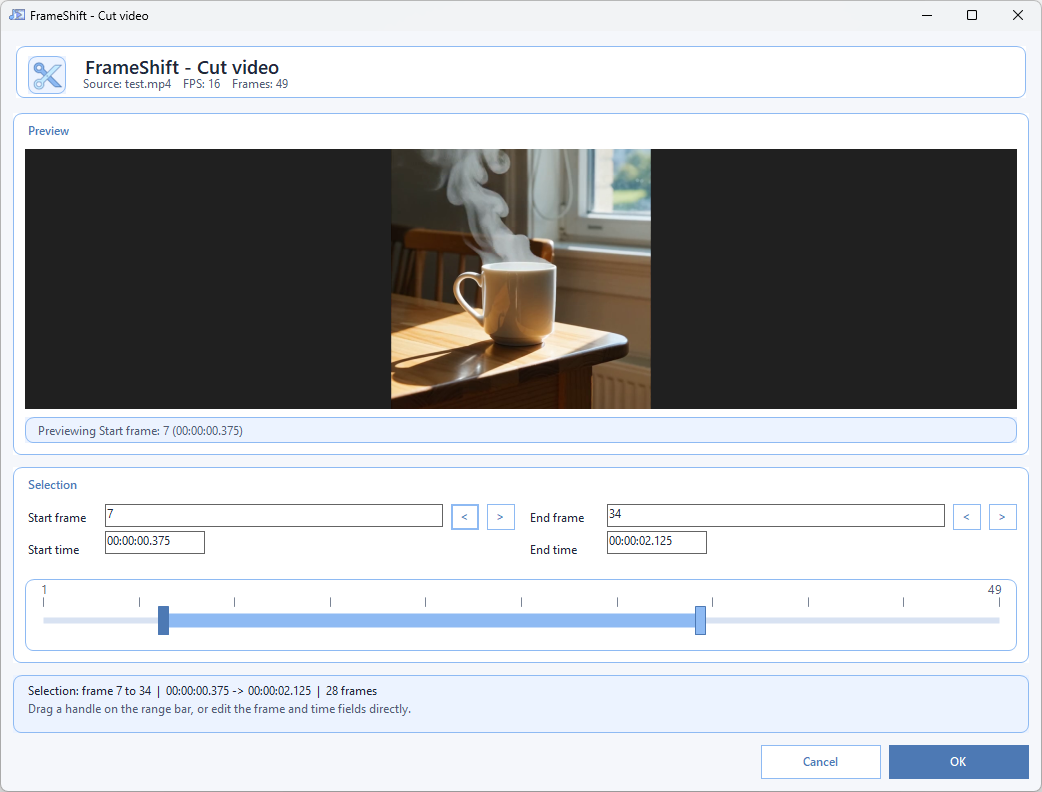
Find Loop
Search and preview in Cut Video.
8 languages
App, menus and installer.
Options and languages
Balance volume
Light, Moderate or Strong / Night mode. Every audio track is processed; video is copied without re-encoding. Subtitles, chapters and metadata are retained.
Find Loop
Adjust duration, sensitivity, speed and repetitions, or use ping-pong. Seam scores are estimates: preview before exporting one or all candidates.
Languages
English, Simplified Chinese, Spanish, Brazilian Portuguese, Russian, French, Japanese and Indonesian. Change the language in Settings for the next launch.
The tools
Video 20
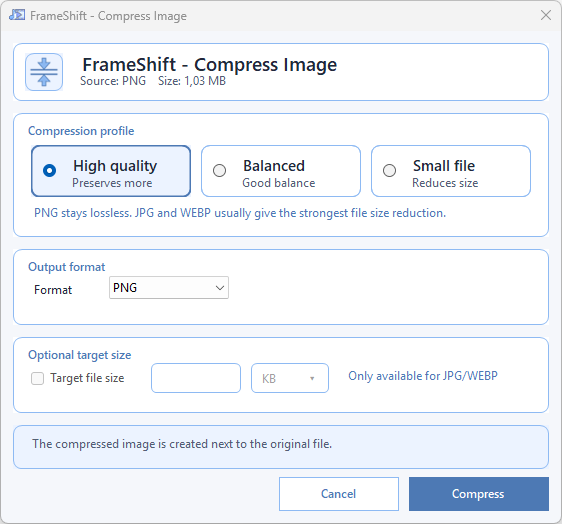
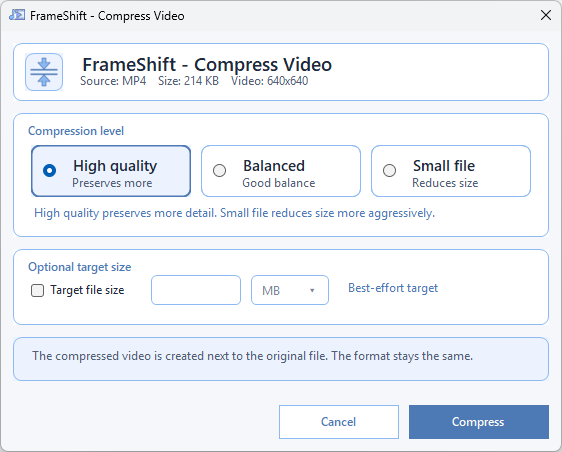
- CompressReduce file size.
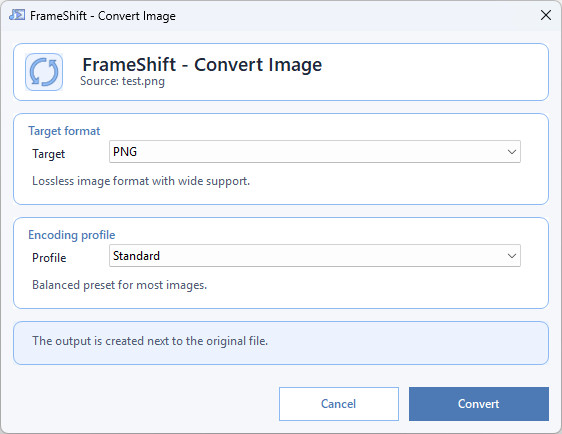
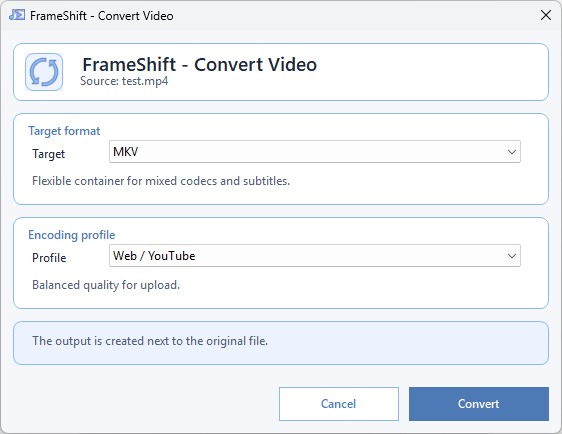
- ConvertChange the file format.
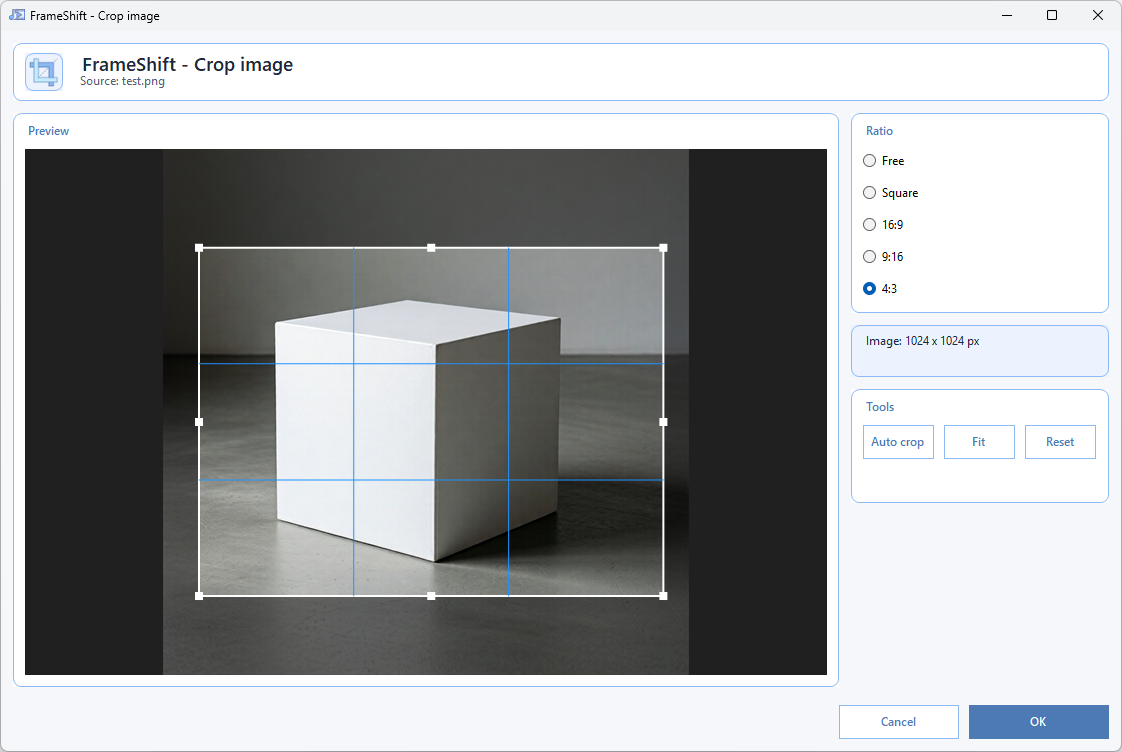
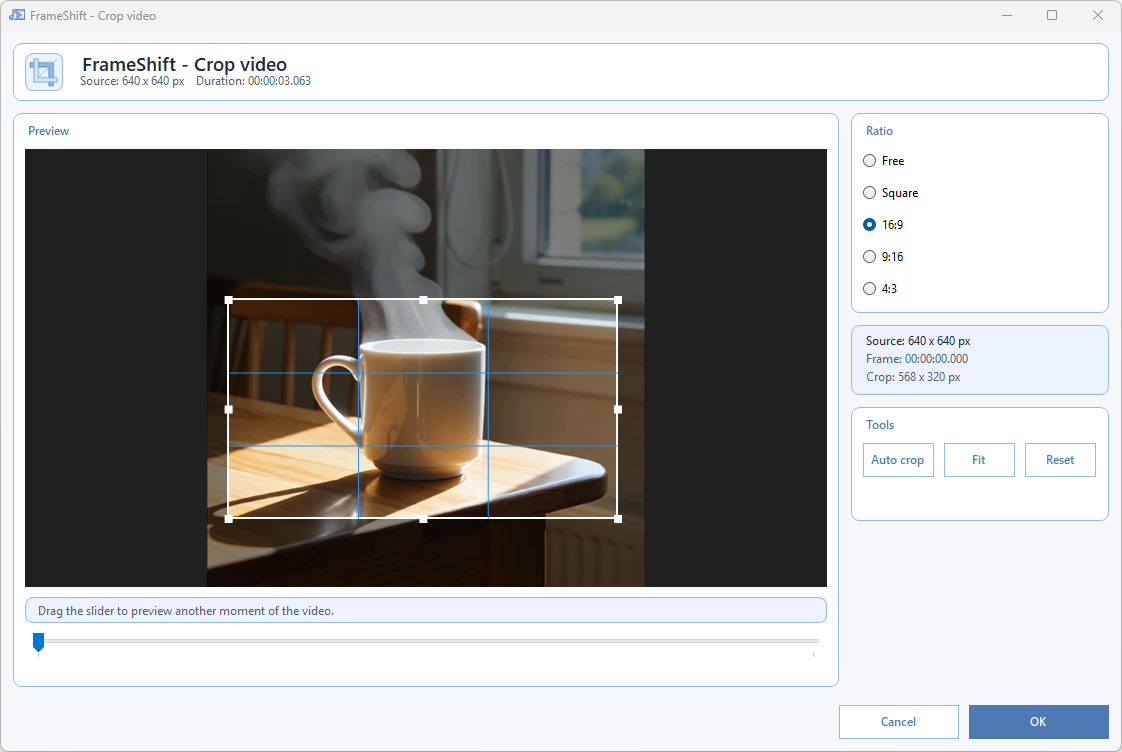
- CropAdjust the frame.
- Cut / Find LoopTrim a clip or find a loop.
- Balance volumeBalance quiet and loud passages.
- Remove audioSave a silent video.
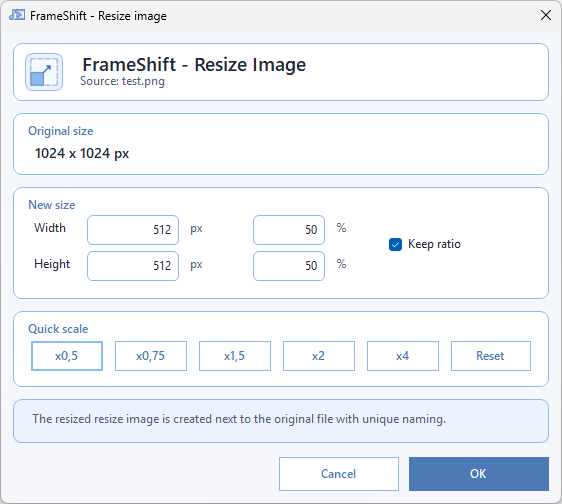
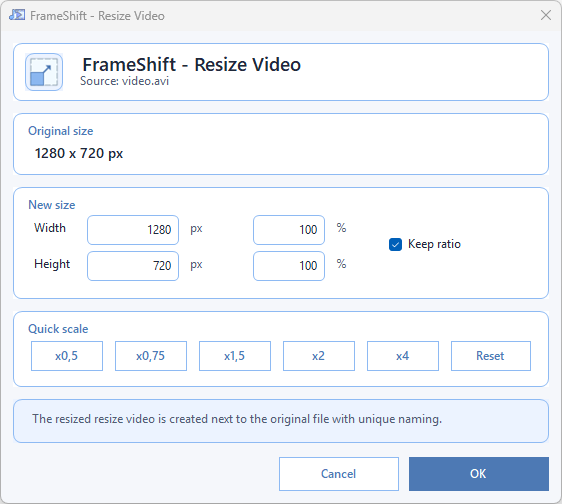
- ResizeChange output dimensions.
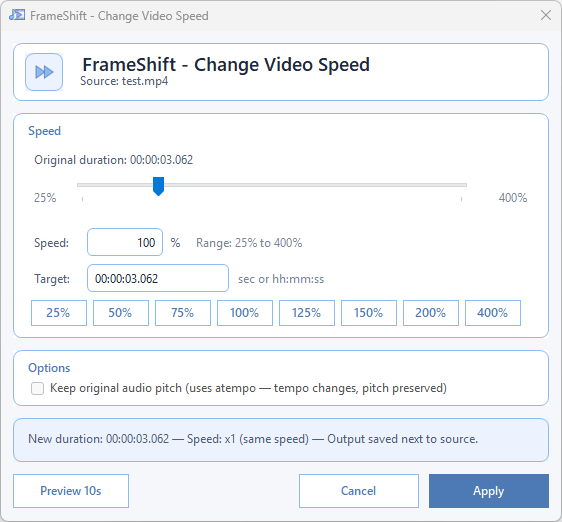
- Change speedAdjust playback speed.
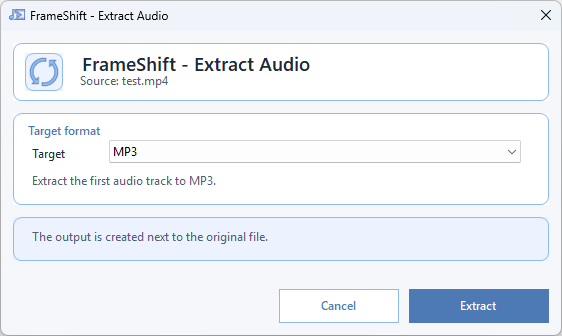
- Extract audioSave the audio separately.
- Create subtitle fileTranscribe locally with Whisper.
- Add subtitles to videoSelectable track or burn-in.
- Extract framesSave video frames as images.
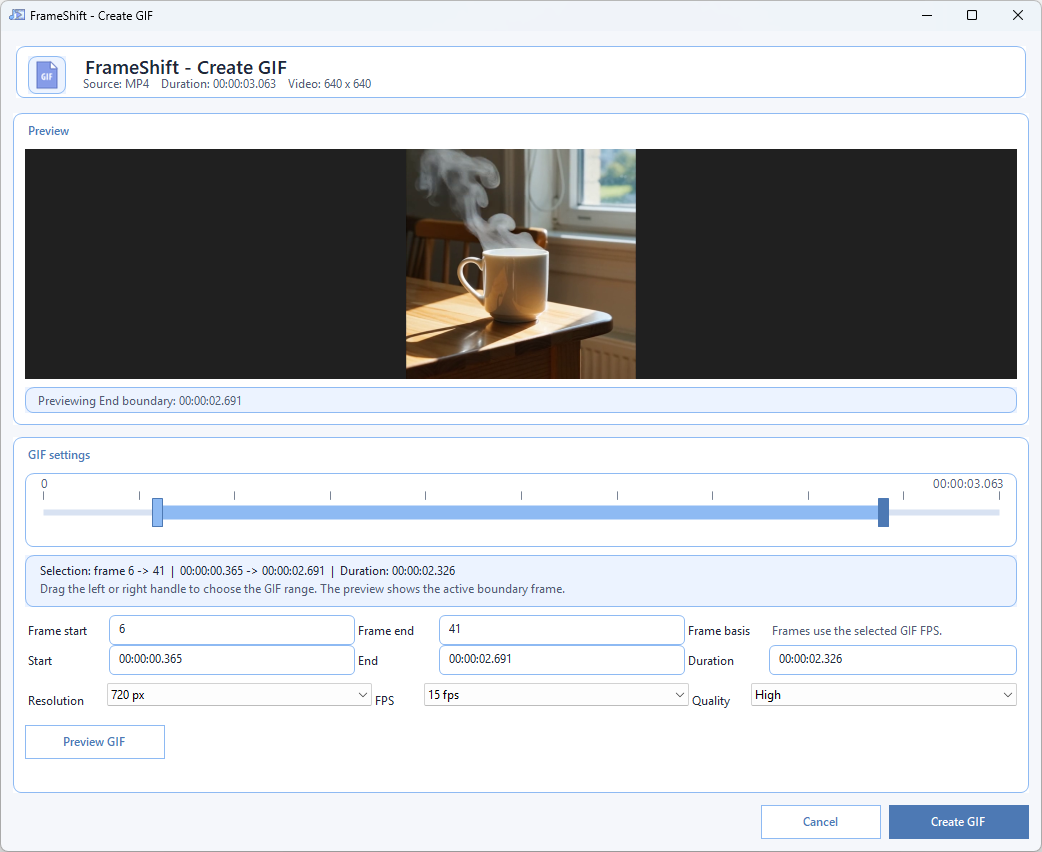
- Create GIFExport a clip as a GIF.
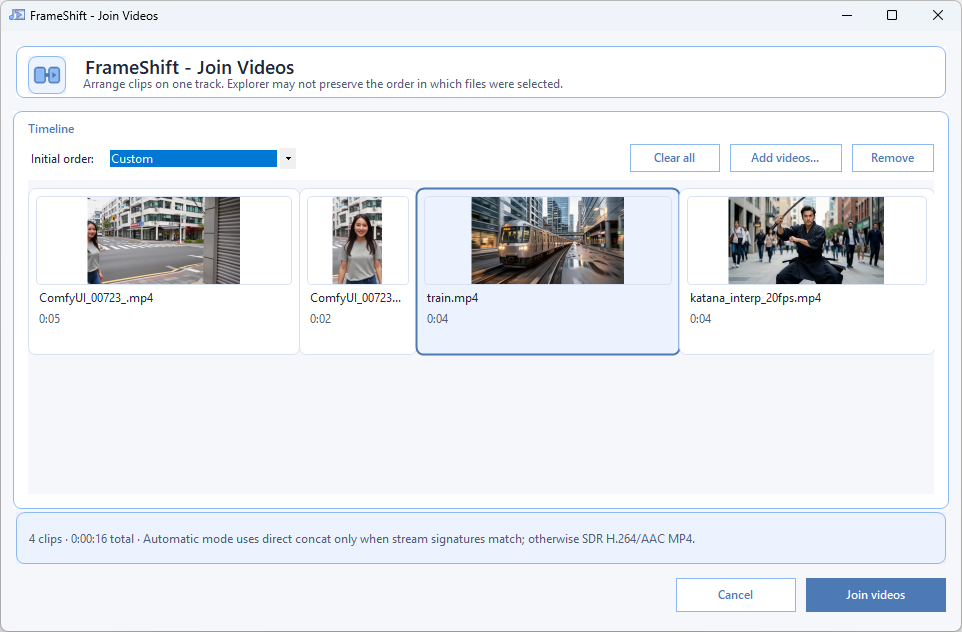
- Join videosAssemble clips in order.
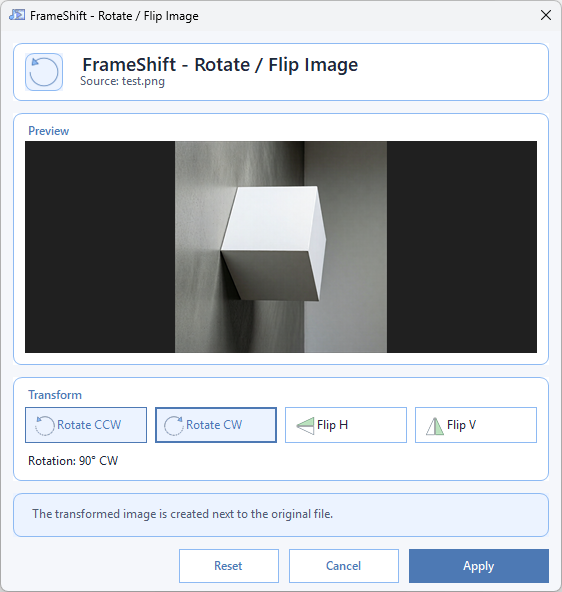
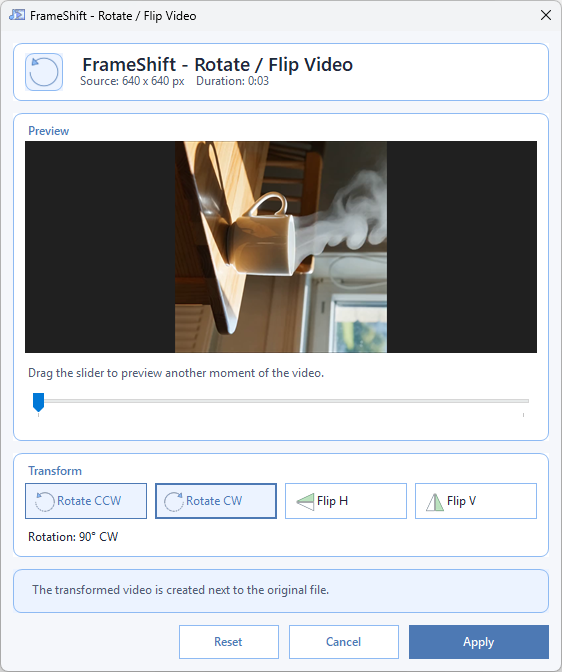
- Rotate / FlipAdjust orientation.
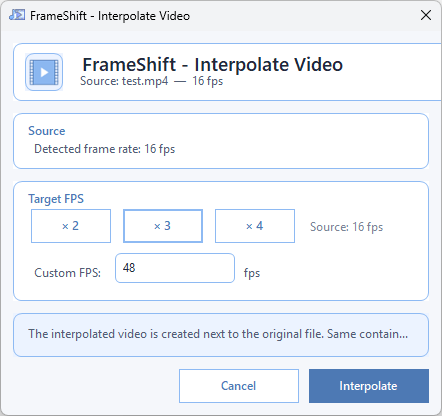
- InterpolateChange the frame rate.
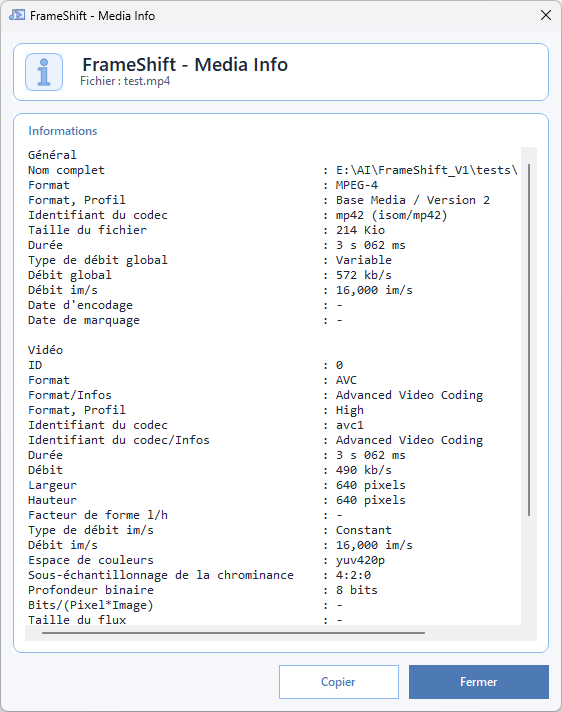
- Media infoInspect the media details.
- Upscale VideoEnlarge with local AI.
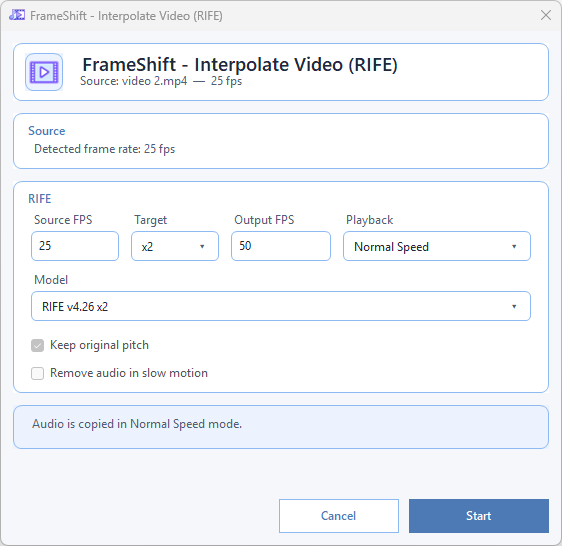
- Interpolate (RIFE)Generate intermediate frames.
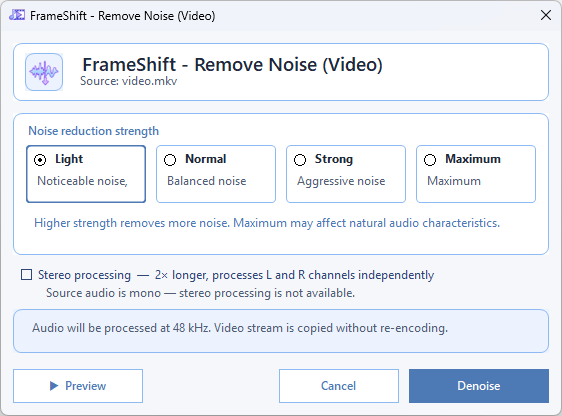
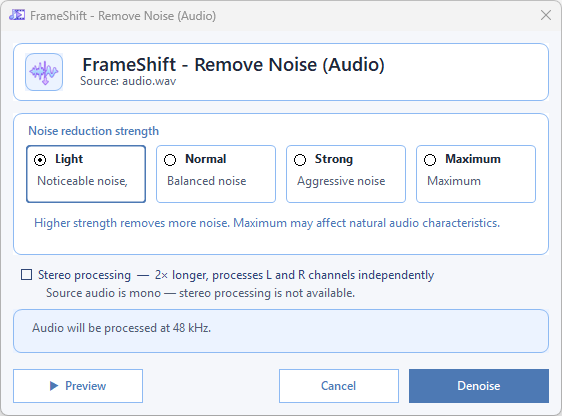
- Remove noiseDenoise the audio track.
Audio 10
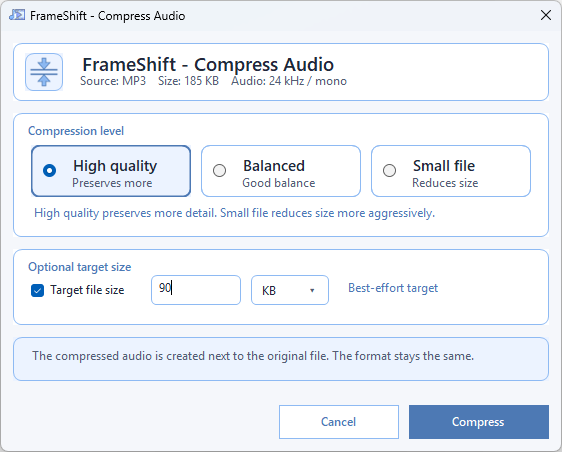
- CompressReduce file size.
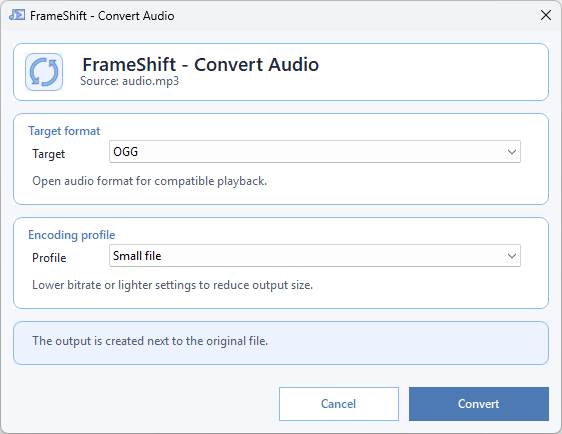
- ConvertChange the file format.
- Create subtitle fileTranscribe locally with Whisper.
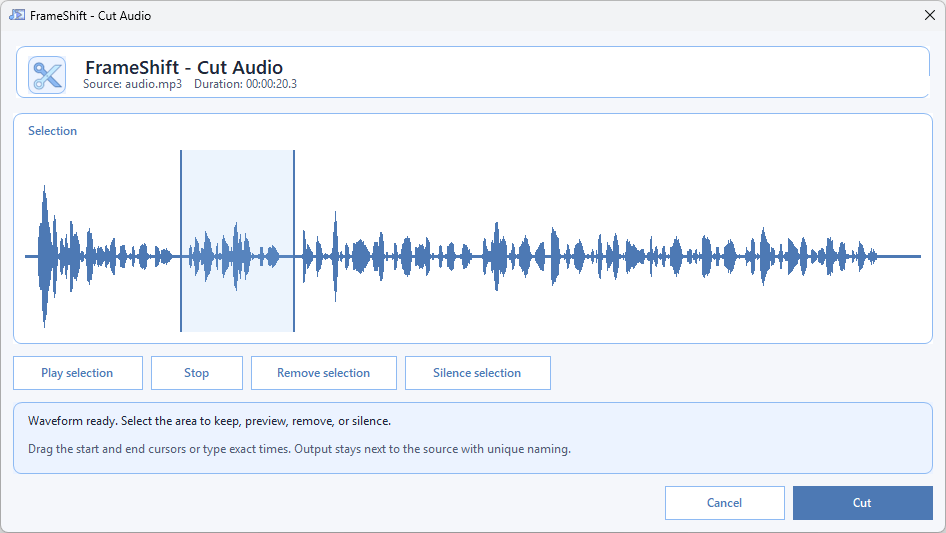
- CutKeep a selected passage.
- ReverseReverse the audio.
- Balance volumeBalance quiet and loud passages.
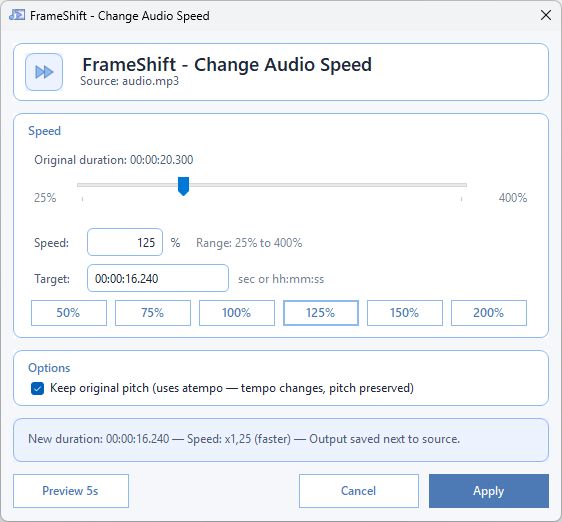
- Change speedAdjust playback speed.
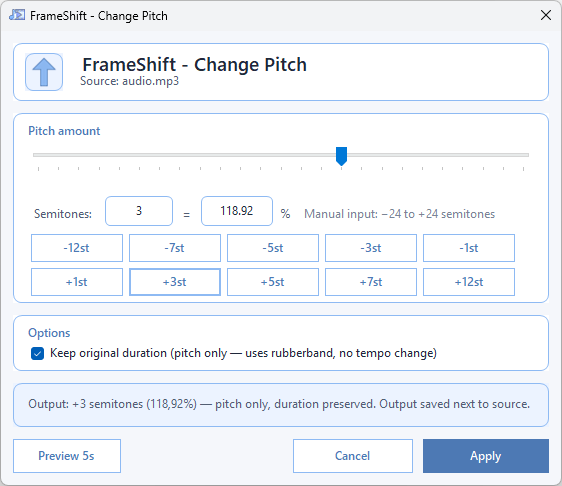
- Change pitchAdjust the pitch.
- Remove noiseDenoise the recording.
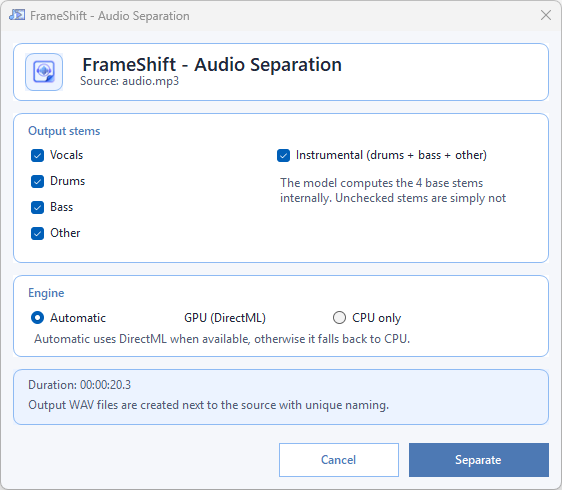
- Audio SeparationSeparate mono or stereo audio stems.
Image 11
- CompressReduce file size.
- ConvertChange the file format.
- CropAdjust the frame.
- ResizeChange output dimensions.
- RotateRotate or flip the image.
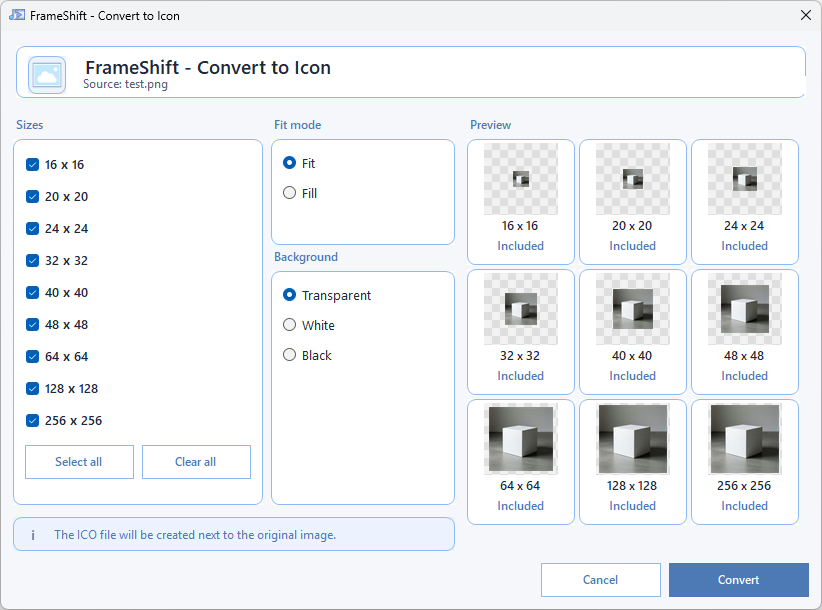
- Create IconExport a Windows icon.
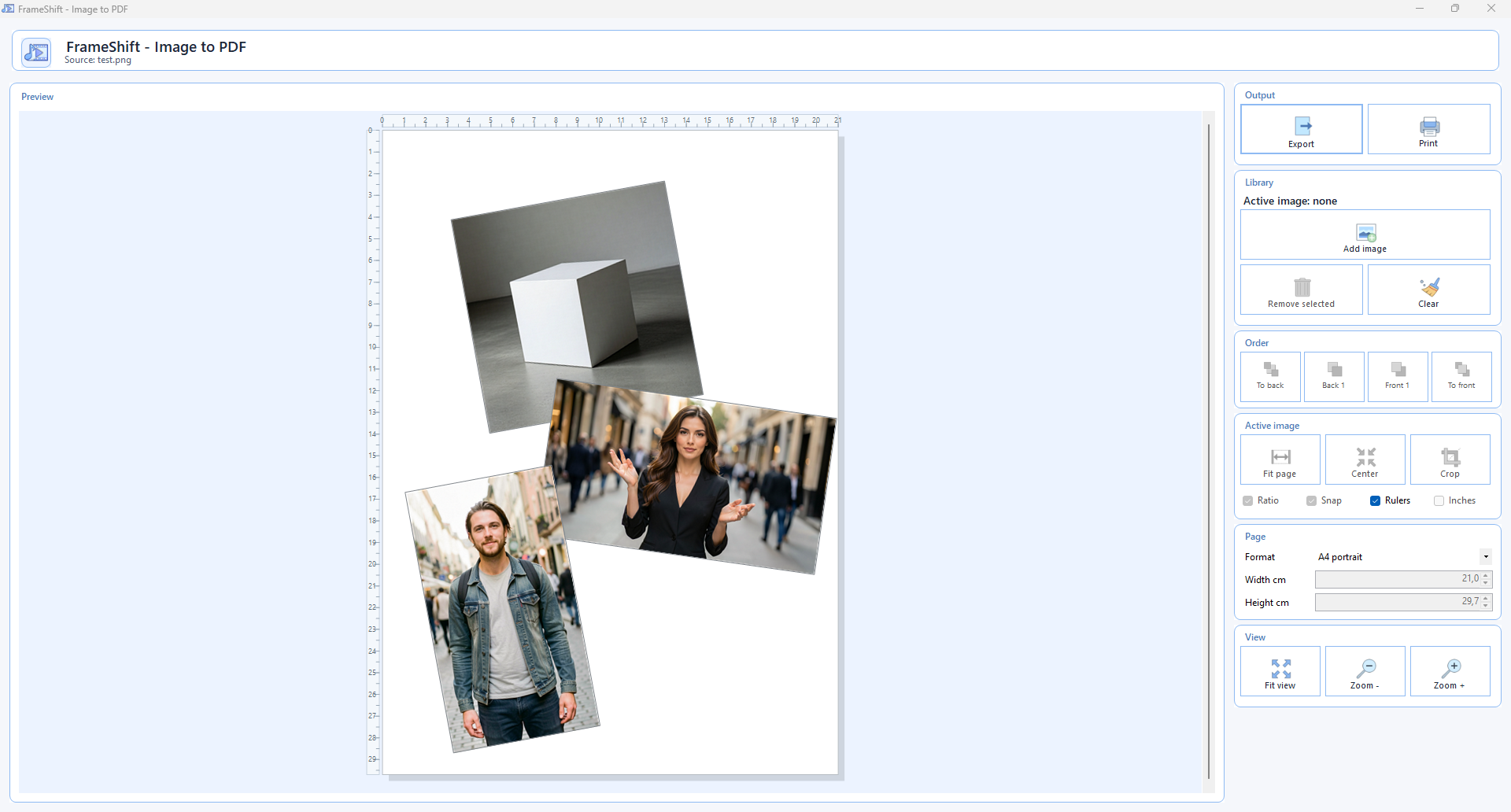
- Image → PDFArrange images in a PDF.
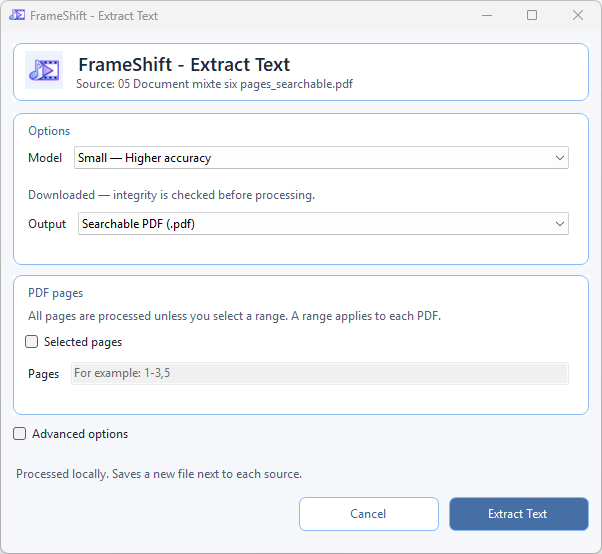
- Extract Text (images and PDF)Save TXT, JSON or searchable PDF.
- Remove BackgroundSave a transparent PNG.
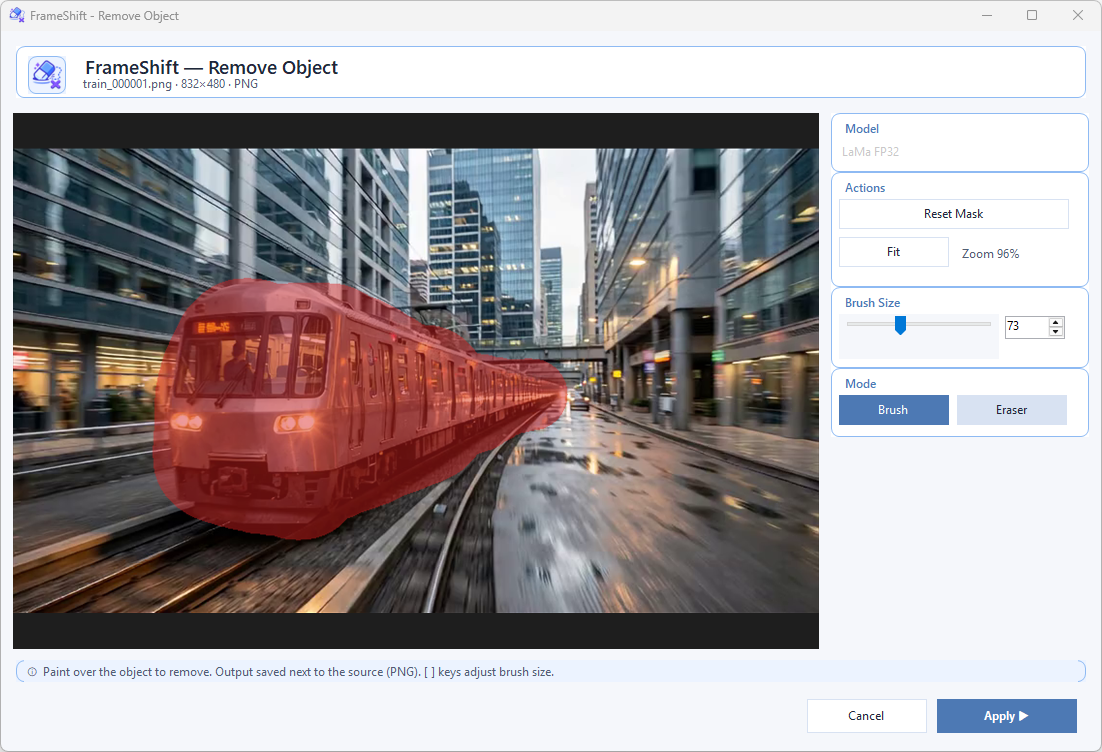
- Remove ObjectPaint a mask, then inpaint.
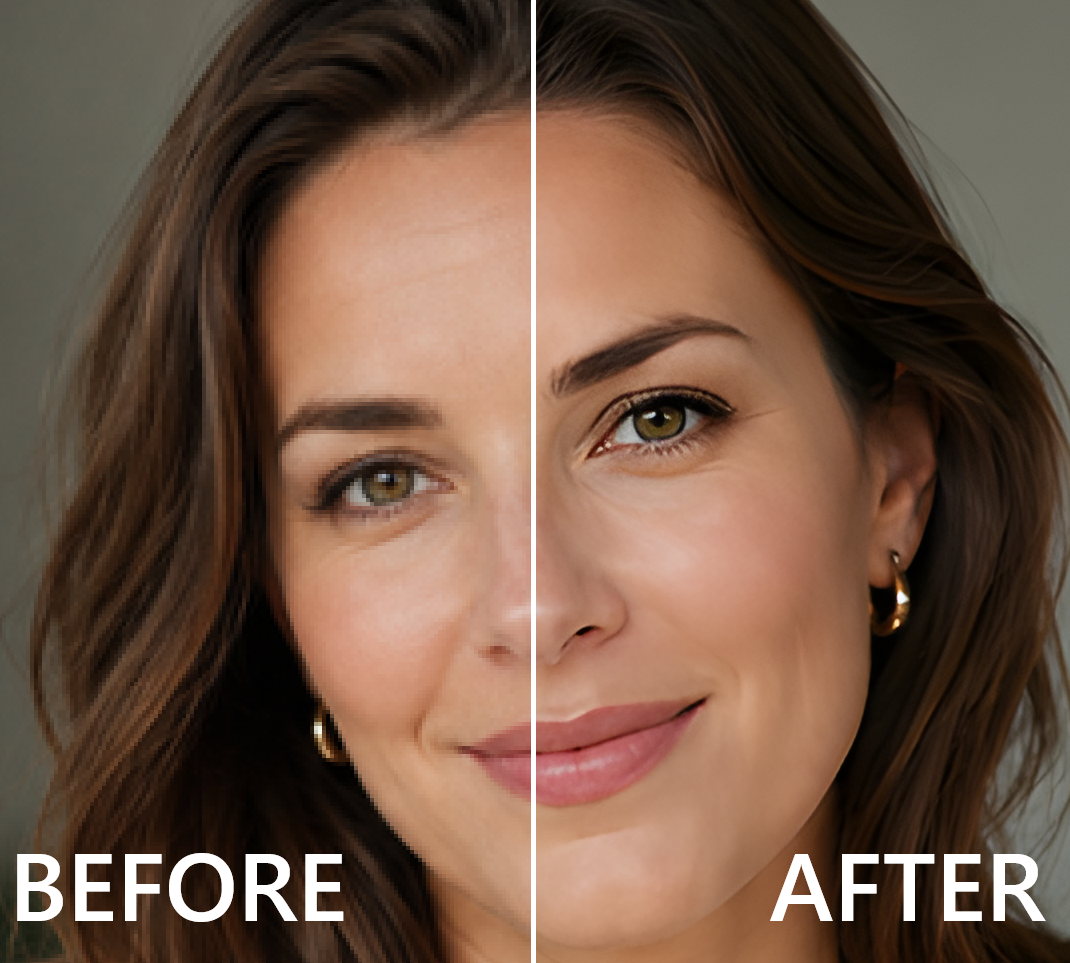
- Upscale ImageEnlarge with a local model.
Local AI 10
- Extract TextOCR for images and PDFs.
- Remove BackgroundTransparent image output.
- Upscale ImageThree selectable image models.
- Remove ObjectLocal LaMa inpainting.
- Interpolate (RIFE)Generate intermediate frames.
- Upscale VideoReal-ESRGAN video models.
- Audio SeparationSeparate mono or stereo stems.
- Create Subtitle FileTranscribe audio or video.
- Remove Noise · AudioDeepFilterNet3 denoising.
- Remove Noise · VideoClean audio; copy the video.
Launch actions from Explorer or drop files into the main window. Batch actions use shared settings. AI models and licences →
In practice
Local AI tools →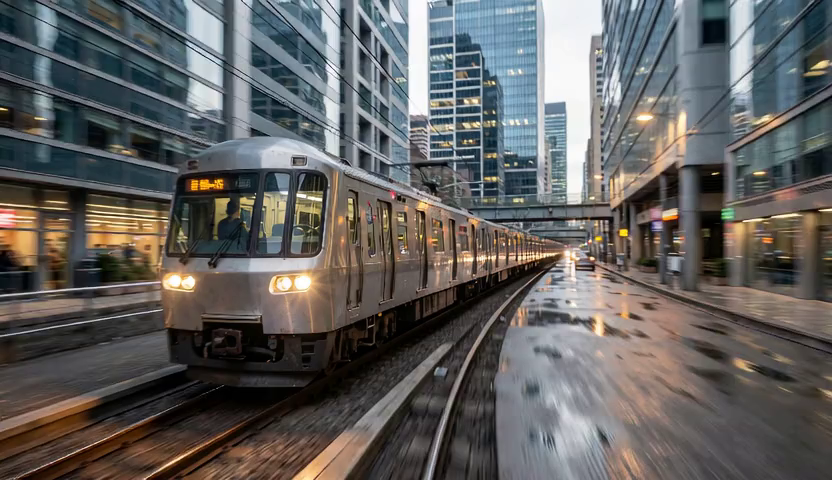 Before
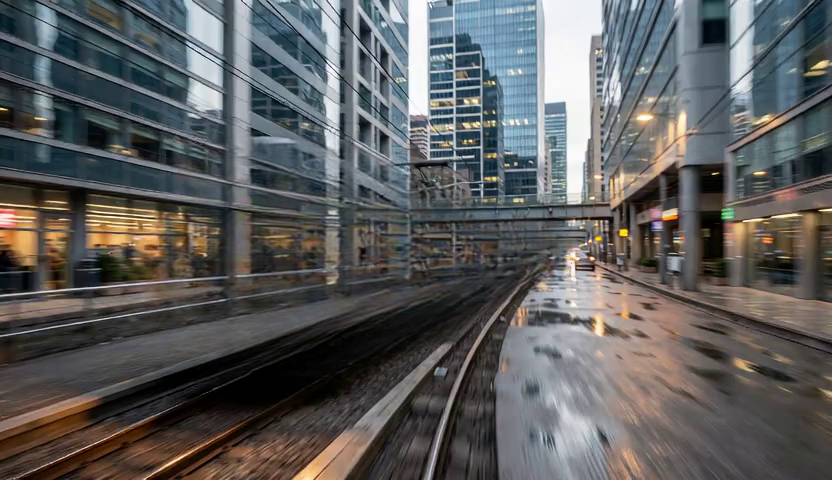 After
A few windows
Select an image to enlarge it.
Questions
Which Windows versions are supported?
Windows 10 and 11, x64. The installer includes the .NET runtime, FFmpeg and FFprobe.
Does processing work offline?
Yes. Optional AI models need an initial download; after setup, processing runs locally without uploading media.
Are the original files preserved?
Yes. Outputs are saved beside the source under unique names.
Is FrameShift free?
Yes. FrameShift is free and open source under GPL v3. Model licences are listed in the local AI guide.
Which languages are available?
English, Simplified Chinese, Spanish, Brazilian Portuguese, Russian, French, Japanese and Indonesian. Set the language in the installer or Settings; application windows use it on the next launch.
Does local AI require a GPU?
Supported models use DirectML with CPU fallback. Some models run on CPU only. See the model table for details.